
Linking tasks with dependencies
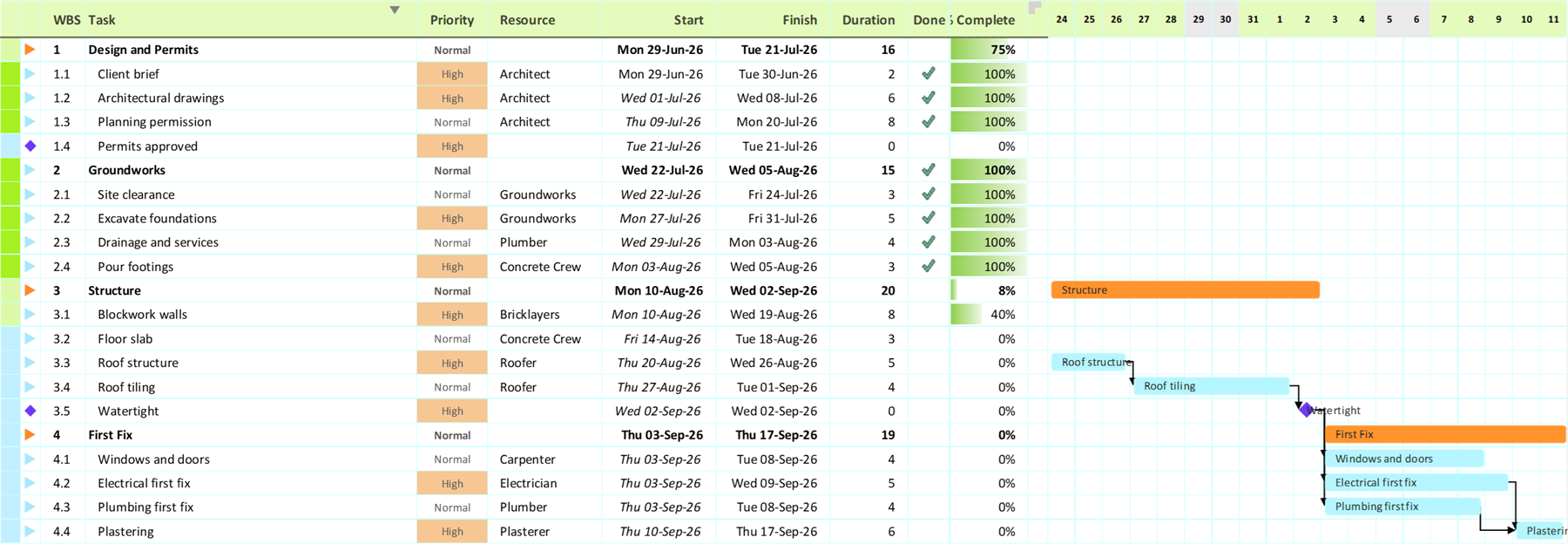
Task dependencies tell Gantt Excel the order your tasks have to run in. Set one, and the schedule reshuffles itself — dates, bars and the critical path all follow automatically.
A dependency is a link between two tasks: a predecessor — the task that comes first — and a successor, the task that waits on it. Once linked, you never move the successor by hand. Gantt Excel keeps it in step with its predecessor every time dates change, and pushes the change on down the chain.
01 What is a task dependency?
A task dependency is a logical relationship between two pieces of work: one task or milestone relies on another being under way, or finished, before it can go ahead. It is the same relationship other planning tools call a link, and it is what separates a schedule from a list of dates that happen to be in order.
Linking is also what makes the schedule maintain itself. Once two tasks are linked, Gantt Excel auto-schedules them: change a duration, move a start date or add a link anywhere in the chain, and every dependent task downstream shifts to match — without you retyping a single date.
The link is always stored on the successor. That is worth knowing before you start, because it decides which task you open: to say “this task waits for that one”, you open the task that waits.
02 Creating a task dependency
There are two ways to create a link and one place to read your links back. Whichever way you create one, it is stored identically and behaves identically. Changing or removing a link afterwards is covered at the end of this section.
“I want to choose the type and the lag.”
The Dependencies tab of the Task Form. Pick the predecessor, choose one of the four link types, set a lag, click Add. This is the only route that gives you anything other than a plain Finish-to-Start link.
“I just want these two in order.”
Drag a task’s Estimated bar onto the row of the task it should wait for. Gantt Excel asks you to confirm, then creates a Finish-to-Start link with a lag of 0 — by far the most common kind.
“What is this task actually waiting on?”
The WBS Predecessors and WBS Successors columns on the sheet. WBS Predecessors reads as 3 FS 2| — predecessor WBS 3, type FS, lag 2. Every entry ends with a |, including the last one, so a task with two predecessors reads 3 FS 2|5 SS 0|. WBS Successors lists WBS numbers in the same form.
Adding a link from the Task Form
Double-click the task that waits. Not the one that comes first — the link lives on the successor.
Switch to the Dependencies tab, the second tab of the form.
Choose the predecessor in the Task list. It shows each task’s WBS number, name, start and end dates, so you can tell two similarly named tasks apart.
Pick a Type — Finish to Start, Start to Start, Finish to Finish or Start to Finish — and type a Lag if you want a gap or an overlap. Leave Lag empty for none.
Click Add. The link joins the list below, and the dates above update straight away so you can see what it did. Click OK to save.
A task can have as many predecessors as it needs; each one becomes a row in the list. Changing them afterwards happens on the same form — see Modifying a task dependency below.

- Task. The predecessor picker, showing each candidate’s WBS number, name, start and end dates.
- Type. The link type — Finish to Start, Start to Start, Finish to Finish or Start to Finish.
- Lag. The gap, in working days. A negative figure overlaps the two tasks instead.
- Add. Commits the link to the list below. Nothing is linked until you click it.
- The list. Every predecessor of this task, each with its type, lag and the predecessor’s dates.
- Edit, Delete, Clear. Change the selected link, remove it, or remove every link on the task.
Adding a link by dragging on the chart
Drag the Estimated bar of the task that waits, and drop it on the row of the task it should wait for. Gantt Excel shows you both task names and asks Do you want to proceed?
before writing anything; say yes and you get a Finish-to-Start link with no lag. Say no, or drop somewhere it cannot use, and the bar snaps back exactly where it was.
Click the bar once before you drag it. That first click selects the bar and is what puts Gantt Excel into drag mode; the drag is the second gesture. Where you land along the row makes no difference — only the row itself decides which task you are linking to.
Dragging is deliberately switched off in three situations, and each one tells you why rather than doing nothing:
- In the Hourly View —
Bars can’t be moved or linked in the Hourly View. Use the Task Form to change dates.
- While Hide Holidays or Hide Work Off Days is on. A hidden day has no column, so the date you dropped on cannot be read back reliably.
- On a parent (summary) bar —
Parent (summary) tasks cannot be moved or linked.
Modifying a task dependency
Every change to an existing link happens in the same place you made it: double-click the task that waits, open the Dependencies tab, and work on the list.
Select the link in the list. Edit and Delete are greyed out until a row is selected, and wake up the moment one is.
Click Edit to change it. The link’s type and lag drop back into the pickers, and the Edit button itself becomes Save.
Change the Type or the Lag, then click Save. Click OK to close the form when you are done.
The other two buttons need no edit mode. Delete removes the link you have selected and leaves the rest alone. Clear empties the whole list at once and puts the task back on the dates you last entered by hand — useful when a task has collected several links and you want to start again.
03 The four task dependency types
Every link answers one question: which end of the predecessor drives which end of the successor? Two of them drive the successor’s start, two drive its finish.
| Type | Reads as | The rule | Drives | How common |
|---|---|---|---|---|
| FS | Finish to Start | B starts after A finishes | B’s start date | The default |
| SS | Start to Start | B starts when A starts | B’s start date | Common |
| FF | Finish to Finish | B finishes when A finishes | B’s finish date | Occasional |
| SF | Start to Finish | B finishes before A starts | B’s finish date | Rare |
The worked examples below all use a Monday–Friday working week, and both tasks are two or three days long. Task A runs Mon 6 to Wed 8 July; Task B is a 2-day task.
FS — Finish to Start
A Finish to Start link — Finish-to-Start, FS — means the dependent task cannot start until the task it depends on has finished. This is what dragging bar to bar gives you, and it is how most real work flows: you cannot fit the units until the old ones are out. If the predecessor slips by a day, the dependent task slips with it.
A finishes Wed 8 July, so B is scheduled 9–10 July — the next working day after A, running its own two days.
SS — Start to Start
A Start to Start link — Start-to-Start, SS — means the successor cannot start until the predecessor starts. The two do not have to begin at the same moment: with nothing else holding it up the successor kicks off the same day, but the link is a floor rather than a fixed point, so a lag or a second predecessor can push it later. It can never pull it earlier. Handy for work that runs in parallel — the electrician and the plumber both starting on first-fix day.
A starts Mon 6 July, so B also starts 6 July. B keeps its own two days and finishes Tue 7 July.
FF — Finish to Finish
A Finish to Finish link — Finish-to-Finish, FF — means the successor cannot finish until the predecessor has finished. They do not have to end at the same moment either; the successor can end later, never earlier. With nothing else in play the two wrap up together, and Gantt Excel keeps B’s length, working backwards from the shared finish date to set B’s start.
A finishes Wed 8 July, so B is pulled to finish 8 July too — starting Tue 7 July to fit its two days.
SF — Start to Finish
A Start to Finish link — Start-to-Finish, SF — means the successor must finish by the time the predecessor starts. It is rarely used, and the least-used of the four by a long way — reach for it when a hand-off task has to be done just in time for the next one to begin, such as clearing the driveway the day before the skip arrives.
If A starts Wed 8 July, B must finish by Tue 7 July — the working day before A begins — so B runs 6–7 July.
04 Lag time — a delay, or a lead
The Lag field on the Dependencies tab is the gap you set on a link. It is counted in working days, so weekends and holidays on the resource’s calendar never count towards it.
- A positive lag pushes the successor later. FS 2 means “start 2 working days after the predecessor finishes” — a curing or drying gap, say, or a delivery lead time.
- A negative lag — a lead — pulls it earlier, letting the tasks overlap. FS −1 means B can start one working day before A wraps up.
- Leave it empty and Gantt Excel stores 0, which is what you want almost all of the time.
Worked example — the screed has to dry
“Lay floor screed” runs Mon 6 to Wed 8 July. “Lay floor tiles” is a 2-day task, and the screed needs two clear days to cure, so you link it FS with a Lag of 2.
The link first puts the tiling on Thu 9 July, the working day after the screed finishes. The lag then pushes it two more working days: Fri 10 July, then — because Saturday and Sunday are not working days at all — Mon 13 July. Tiling is scheduled 13–14 July.
05 How dependencies auto-schedule your dates
- Length is protected. A link moves the successor; it never stretches or shrinks it. Gantt Excel shifts the whole bar and keeps the duration you entered. The one exception is a task with no usable duration to keep — there, the two constraints decide the length between them.
- The latest predecessor wins. If a task has several predecessors, it is scheduled from whichever one holds it up the longest, so nothing ever starts before it is allowed to. Every link is a “no earlier than” floor, never an exact date.
- Both ends can be driven at once. Put a start-driving link (FS or SS) and a finish-driving one (FF or SF) on the same task and Gantt Excel keeps its duration, placing it at the later of the two finishes it has been given. The binding constraint is whichever comes out later; the other is already satisfied.
- Changes ripple downstream. Move one task and every successor — and their successors — reflows automatically, along with the critical path.
- Summary tasks roll up afterwards. A parent has no dates of its own: it spans its children, so it moves once the children have. A parent can be a predecessor, and its rolled-up dates drive the link.
Worked example — one slip, three tasks moved
The kitchen refit has “Rip out old units” (Mon 6 – Tue 7 July), then “Fit kitchen units” linked FS, then “Seal and grout” linked FS to that. The units are 3 days, the grouting 1 day.
| Task | Before | After the rip-out runs a day over |
|---|---|---|
| Rip out old units | Mon 6 – Tue 7 July | Mon 6 – Wed 8 July |
| Fit kitchen units | Wed 8 – Fri 10 July | Thu 9 – Mon 13 July |
| Seal and grout | Mon 13 July | Tue 14 July |
You changed one duration. Fitting the units moved one working day later — but because its three days now straddle the weekend, its finish jumped from Friday to the following Monday, and the grouting followed. Nothing was retyped, and none of the three tasks changed length.
06 Reading the chart: what the gaps mean
Once you know what to look for, the bars themselves tell you which tasks are linked — before you open a single task form. The spacing at the right-hand end of a bar is deliberate, not a rendering quirk.
- A bar that stops short of its last column has a link attached to its finish — either it drives a successor (FS or FF), or something drives its finish (FF or SF). The gap is the room the arrowhead needs to land cleanly on the bar’s edge.
- A bar that runs right out to the column edge has nothing attached to its finish. It may still be linked at its start — an incoming FS or SS arrives on the left — but nothing depends on when it ends.
- The small inset on the left of every task bar is always there, whether or not a link arrives, so it is not a signal on its own.

This applies to the day-based views — Daily, Weekly, Monthly and wider. In the Hourly View bars always fill their columns completely, so the spacing carries no meaning there; read the arrows themselves instead.
07 When Gantt Excel refuses a link
Some links cannot be scheduled at all, so they are blocked at the moment you try to make them rather than being accepted and quietly ignored. Each refusal names its reason:
| What you see | What it means | What to do |
|---|---|---|
| A task cannot depend on itself. | You dropped a bar back onto its own row. | Drop it on a different task’s row. |
| Dependency already exists. | This task already waits on that one. | Edit the existing link if you want a different type or lag. |
| Cannot save the dependency. It would create a circular reference. | The refusal you get from the Dependencies tab when the link you are adding would close a loop. | Pick a different predecessor, or break the existing link first. |
| Cannot create circular dependency. | The same refusal from a bar drag, and it covers two cases: the other task already waits on this one, or you dropped a task’s bar onto one of its own ancestors — its parent, or its parent’s parent. | Decide which really comes first and delete the other link. If it was a parent row, link the child instead. |
| Cannot create dependency: it would form a circular chain. | The same problem, but round a longer loop — A drives B drives C, and you tried to make C drive A. | Follow the chain back and break it at one link. |
| Dependencies cannot be set for parent tasks | You tried to give a summary task a predecessor. A parent’s dates come from its children, so it has nothing to reschedule. | Link the child tasks instead. |
| Cannot add dependency: would cause Start Date to be after End Date | The link would drive the task’s start past its own end. | Reduce the lag, or pick a different link type. |
The predecessor picker does most of this work quietly, before you ever click Add: any task that would close a loop is simply left out of the list. That includes the task itself and everything above it in the outline — a task can never depend on its own parent or grandparent, because it already rolls up into them.
There is a second, gentler version of the same trouble. A task pinned at both ends by links that leave no room for the work — a Start-to-Start driving its start and a Finish-to-Finish driving its finish to the same moment — is reported once per session too, as tasks linked at both ends in a way that leaves no time for the work.
Nothing is lost; it is telling you the constraints disagree with the duration, and the fix is to relax one of the two links.
08 Common questions
Which task do I open — the one that waits, or the one that comes first?
Why can’t I type in the Start Date any more?
Why isn’t my summary task in the predecessor list?
I dragged a bar onto another task and nothing happened.
How do I make two tasks overlap instead of queueing?
I can’t see the dependency arrows on my chart.
Related: The Critical Path & float · The Task Form · Summary tasks, indenting & the WBS · Understanding % Complete · Task dependencies in the Gantt chart template