This page shows you how to enter your licence code, what happens once the workbook is activated, how to move your licence between computers, and what your year of updates covers.
01 Activating your licence
Activation happens in the workbook you want to unlock, from the Activate License button on the Gantt Excel tab.
1
Open the workbook you want to license and click Activate License on the Gantt Excel tab.
2
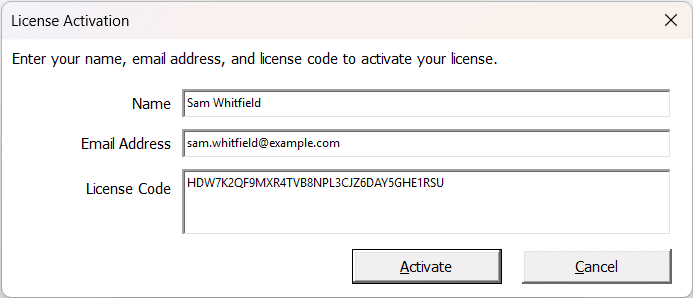
The License Activation window opens: Enter your name, email address, and license code to activate your license. Fill in Name, Email Address and License Code. The email must be the one you bought with.
Three fields: your name, the email address you bought with, and the code from your order email.
3
Click Activate.
4
A thank-you appears, naming the edition you have just activated. If the workbook has no chart in it yet, a second short note follows pointing you at Add New Gantt Chart to get started. Activate a workbook you are already using and you will not see that one. Everything the licence covers is live immediately, with no restart.
02 Your licence and your computers
Activating registers the licence on the computer you are sitting at.
Once a computer is licensed, you do not enter your code again on it. A newer version released within your update year, a plan a colleague built, a fresh workbook: all of them open ready to use. Section 03 covers versions released after that year.
A licence can be activated on up to 3 computers, so your desktop, your laptop and a machine at home can all run from the same order. All three must be yours: a licence is for one person, and colleagues each need a licence of their own.
🧭Moving your licence to a different computer. Open Settings and use Deactivate This Computer. It asks first: This removes the licence from this computer so you can activate it on another one. Your tasks and project data are not touched. Continue? Say yes and it tells you This computer is no longer licensed. Your tasks and project data are not changed. Click Activate License on the Gantt Excel tab whenever you want to license this computer again. Your file stays open, and your tasks and dates are exactly as they were. Do this before you retire or wipe a machine, so the activation goes back to your licence rather than staying with a computer you no longer own. Be connected to the internet when you press it, because that is the moment the activation is handed back. Deactivating offline releases the computer but leaves the activation counted, and you would need to raise a ticket on our support page for us to clear it.
ℹ️If the licence record on the computer goes missing. Reinstalling Office, resetting a Windows or Mac profile, or a disk-cleaning tool can remove it. Gantt Excel puts it back the next time it can reach us, with nothing for you to do. If it cannot reach us at that moment, it gives you a few days’ grace and names the date: Your licence could not be checked just now. Full editing will continue until that date. After it you can still record progress but not change the plan. Connect to the internet and open the file again, as the message says, and it sorts itself out.
03 Updates included with your licence
Your licence includes one year of updates, counted from the date of your order. Every version of Gantt Excel released during that year is yours to use permanently, including after the year ends.
💡Renewing. To move to a version released after your update year, place a new order for the licence you want, then use Activate License and enter the new code, exactly as you did the first time. That version is fully yours straight away, with no restart. A renewal gives you a new code rather than extending the old one, so entering it is the step that makes the difference; reopening the file on its own will not pick it up. Ask us about a renewal price before you buy: raise a ticket on our support page.
04 Sending a plan to someone else
Your licence stays with you. Sending someone a workbook does not hand them your licence, and it does not use up one of your activations.
What they can do depends on how you send it:
1
Send the file as it is. Someone who has no licence of their own opens it in contributor mode: This project is licensed to someone else, so it has opened in contributor mode. You can record progress: actual dates, % complete, Done and Notes. Everything else is read-only. Activate your own licence to edit the plan. Choose this when you want progress reported back but the plan itself left alone.
2
Share for Review. On the Gantt Excel tab, in the Export group, this saves a separate read-only copy to send out: Save a read-only copy of this plan to send to someone who should see it but not change it.
The copy is read-only for everyone who opens it, including you. Open one on the computer that made it and you are told This is a read-only review copy, so it cannot be changed – this is exactly what the person you send it to will see. To work on it yourself, click Unlock This Copy on the Gantt Excel tab. That is how you check what you are about to send.
If you do need to work on a review copy, because the original is lost or you want to carry on from the copy, the Share for Review button becomes Unlock This Copy while you have one open. It asks first, and it needs a licence, so the person you sent the copy to cannot use it. Unlocking turns that copy back into an ordinary Gantt Excel file and saves it. Anyone who already has the copy can then update progress in it, the same as with any file you share.
3
Export to XLSX. This writes a plain Excel workbook. Your licence details (the code, the registered name, the email address and the activation date) are cleared out of it as the file is written, so nothing about your licence leaves with it.
05 Common questions
I have activated the file I was already using. Do I need to rebuild my chart?
No. You activate the workbook you are already using, so the plan, the dates, the links and the resources all stay exactly as they are. Everything your licence covers becomes available straight away, without a restart. Before you activate, the button on the Gantt Excel tab may read Upgrade rather than Activate License. It is the same button and it opens the same window. A second workbook needs no second code either: on a computer you have activated, copy the one you already have or begin a fresh one, and it is ready to use.
Where did the activation button go?
It hides itself once a licence is active, because there is nothing left to activate. The exception is a colleague’s plan saved in a version released after your update year: there it stays, so you can enter a renewed code. To confirm the licence, use Gantt Excel → Gantt Excel → About, which shows Licensed to: and the name it was activated under. On a plan that belongs to someone else it reads Contributor mode – not licensed on this computer, and on a file sent to you through Share for Review, Review copy – read only.
I sent my workbook to a colleague. Is my licence still mine?
Yes, and it stays on your computers. Sending a file does not give away your licence or use up an activation. Without a licence of their own your colleague gets contributor mode, so they can record progress (actual dates, % complete, Done and Notes) but not change the plan. That applies to plans saved by a recent version of Gantt Excel. A plan you built years ago and have not opened since carries its licence differently and will still open fully for whoever you send it to. If you would rather they only looked, use Share for Review. If you want a plain workbook with no licence details in it at all, use Export to XLSX. Section 04 covers all three.
A colleague’s plan says my update period has ended, and I cannot add a chart. Why?
Your colleague saved the plan in a version of Gantt Excel released after your update year. You can still edit everything in it. What needs a renewed licence is adding Gantt charts to it, by any route: Add New Gantt Chart, Duplicate in Settings, Import Gantt Chart or copying a chart’s sheet tab. Your own licence is fine and nothing has been deactivated. To add charts to that plan, renew and enter the new code through Activate License, which stays on the tab in that file. Section 03 has the detail.
Do I have to pay again every year?
No. Your licence does not expire and the version you are using does not stop working. What runs for a year is the updates: the newer versions we release during that year are yours permanently. Carry on with what you have for as long as it suits you, and renew only when there is a newer version you want. Section 03 has the detail.
My new computer says the licence is not active. What now?
Click Activate License on the Gantt Excel tab and enter your code, exactly as you did on the first computer. If it tells you the activations are used up (a licence allows 3 computers), open Settings on a computer you no longer need and use Deactivate This Computer to hand that one back first. If the old computer has already gone, raise a ticket on our support page and we will free it for you. If activation says it could not contact our server, see When activation cannot reach us.